Dynamic UTM parameters in Google Ads help advertisers understand exactly where their traffic and conversions come from. Instead of creating separate URLs for every campaign or keyword, Google automatically fills in tracking details at the time of the ad click, making performance analysis simpler and more reliable.
No technical background is required; this article is written for marketers, founders, and advertisers who want clear answers and actionable steps without jargon.
What Are UTM Parameters?
Before diving into the “dynamic” aspect, we must understand the foundation. UTM stands for Urchin Tracking Module. These are simple snippets of text added to the end of a URL that allow analytics software to track the progress of a campaign.
The Anatomy of a UTM Link
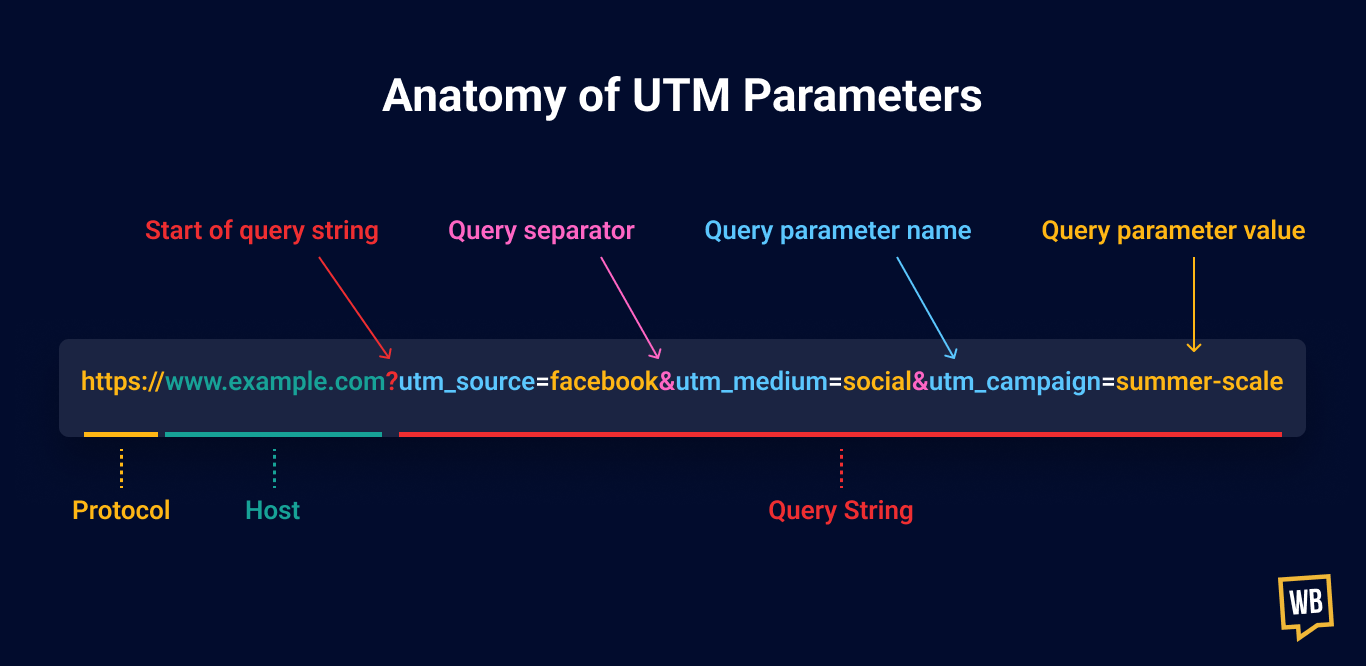
A typical UTM-tagged URL looks like this:
There are five standard UTM parameters:
- utm_source: Identifies the platform (e.g., Google, Facebook).
- utm_medium: Identifies the marketing medium (e.g., cpc, email, social).
- utm_campaign: Identifies the specific marketing effort (e.g., summer_scale).
- utm_term: Typically used for search keywords.
- utm_content: Used to differentiate similar content or ads within the same campaign.
For a complete foundational overview, see this guide on
 UTM Marketing Guide: How to Track and Optimize Campaigns
What Are Dynamic UTM Parameters?
Dynamic UTM parameters automatically change based on Google Ads data.
Instead of manually entering campaign names, keywords, or ad details, Google Ads fills them automatically using ValueTrack parameters.
In simple terms:
- One setup works for all ads
- No copy-paste mistakes
- Accurate tracking at scale
Dynamic UTMs are especially useful if you manage multiple campaigns or frequently update ads.
Here’s a detailed breakdown of Google Ads UTM parameters for deeper reference.
Why Dynamic UTMs Exist (And Why Google Supports Them)
If you are a beginner, you might start by manually typing these tags for every ad you create. This is fine if you have one ad and one keyword. But what happens when you scale?
Imagine managing:
- 20 Campaigns
- 100 Ad Groups
- 1,000+ Keywords
Manually creating a unique URL for every single keyword is impossible. It leads to:
- Human Error: Typos in campaign names lead to fragmented data in GA4.
- Broken Links: Forgetting a ? or & can result in a 404 error for the user.
- Stale Data: If you change a campaign name in Google Ads but forget to update the manual UTM, your reporting will be wrong.
Every new ad, keyword, or duplication requires manual UTM updates. That’s where tracking breaks.
Dynamic UTM parameters solve this by using Google Ads ValueTrack parameters, which Google officially supports. Google automatically replaces placeholders with real data at the moment of the click.
For teams managing campaigns at scale, see this guide on
How to Bulk Add UTM Parameters to Google Ads
Why Use Dynamic UTMs in Google Ads?

Using dynamic UTMs helps you:
1. Track performance at the keyword, ad, and campaign level
2. Know which search terms drive conversions 3. Improve ROAS (Return on Ad Spend)
4. Connect Google Ads data with Analytics, CRM, or tools like HubSpot
Without dynamic UTMs, you often see:
- “google / cpc” for everything
- Missing keyword and ad data
- Incomplete attribution
This is why UTMs are so critical across channels, as explained in detail here:
Why are UTM parameters so valuable to your social listening?
Common Google Ads Dynamic UTM Parameters
Here are the most useful ones (don’t worry, they’re simple):
| Parameter | What it Tracks |
| {campaignid} | Campaign ID |
| {adgroupid} | Ad group ID |
| {creative} | Ad ID |
| {keyword} | Keyword that triggered the ad |
| {matchtype} | Match type (exact, phrase, broad) |
| {device} | Device (mobile, desktop, tablet) |
| {network} | Search or Display network |
Example of a Dynamic UTM URL
Here’s a simple and commonly used Google Ads tracking template:
When someone clicks your ad, Google Ads automatically converts it into something like:
utm_source=google
utm_medium=cpc
utm_campaign=123456789
utm_term=landing page builder
utm_content=987654321
You don’t need to do anything manually.
Where to Add Dynamic UTMs in Google Ads
Google Ads allows you to place tracking templates at the Account, Campaign, Ad Group, or Ad level. For 95% of advertisers, the Account Level is the best choice.
Step 1: Access Account Settings
Log in to your Google Ads account. In the left-hand sidebar, click on Settings, then select Account Settings.
Step 2: Open Tracking
Look for the row labeled Tracking. Click the drop-down arrow to expand it.
Step 3: Insert the Tracking Template
In the “Tracking Template” field, paste a standard high-performance string.
Recommended Template:
{lpurl}?utm_source=google&utm_medium=cpc&utm_campaign={campaignid}&utm_adgroup={adgroupid}&utm_term={keyword}&utm_content={creative}&device={device}
The Role of {lpurl}: Your Safety Net
The most confusing part for beginners is the {lpurl} tag. It stands for Landing Page URL.
In a tracking template, {lpurl} acts as a dynamic variable for your Final URL. Instead of typing https://yoursite.com/?utm…, you use {lpurl}?utm..
Why {lpurl} is non-negotiable:
- Centralized Control: You can set a tracking template at the account level, and it will automatically apply to every ad, regardless of which landing page that ad uses.
- Encoding: Google automatically “escapes” or encodes the URL so that special characters don’t break the link.
- Flexibility: If you change your landing page from /home to /offer, you don’t have to touch your tracking; {lpurl} simply fetches the new page.
Step 4: The Test Button (Do Not Skip)
Google provides a Test button. When you click it, Google simulates clicks on your ads to see if the resulting URL works. If your website has certain security plugins or redirects, it might block UTM parameters. The test will tell you if your landing pages are “Found” or “Link Error.”
Dynamic UTMs vs. Google Auto-Tagging (GCLID)
There is a common misconception that if you turn on Auto-tagging in Google Ads, you don’t need UTMs. This is false for anyone using a CRM.
- Auto-tagging (GCLID): This sends a “Google Click ID” to Google Analytics. It is a long string of random numbers. Only Google products can read it.
- Dynamic UTMs: These are “human-readable.” Your CRM, your database, and your email marketing software can read “keyword=crm_software.”
The Industry Standard: Use both. Turn Auto-tagging ON to get deep data in GA4, and use Dynamic UTMs to get readable data in your CRM.
Using Dynamic UTMs with Google Analytics 4 (GA4)
GA4 has changed how it handles campaign data. It now focuses heavily on “Session source/medium” and “First user source/medium.”
By using {campaignid} in your dynamic UTMs, GA4 will initially show IDs instead of names. To fix this, you have two options:
- The Manual Way: Use the {campaignid} and just accept that you’ll see IDs.
- The Hybrid Way: Use the actual campaign name in the UTM if you don’t plan on changing it often.
Example:
{lpurl}?utm_source=google&utm_medium=cpc&utm_campaign=Brand_Search&utm_term={keyword}
Common Mistakes to Avoid
Even pros make mistakes with UTMs. Avoid these four pitfalls:
1. Using Spaces
URLs cannot contain spaces. If your campaign name is “Summer Sale 2024,” Google will replace {campaignid} with the ID number (no spaces). However, if you manually type parts of the UTM, use underscores (summer_sale) or dashes.
2. Double ”?” Marks
A URL can only have one question mark.
- Wrong:
https://site.com/page?id=123?utm_source=google - Right:
https://site.com/page?id=123&utm_source=google
Google’s {lpurl} logic handles this automatically, but be careful if you are adding manual UTMs to the Final URL field.
3. Mixing Case Sensitivity
utm_source=Google and utm_source=google are treated as two different sources in most analytics tools. Always use lowercase for your manual parts of the template to keep data clean.
4. Ignoring the “Final URL Suffix”
In newer versions of Google Ads, there is a field called “Final URL Suffix.” Some advertisers prefer putting UTMs here. The difference is that the Tracking Template is used for third-party tracking, while the Suffix is used specifically for parameters that the landing page needs to read. For beginners, the Tracking Template is the standard.
Ready to Become a UTM Pro?
If you want crystal-clear visibility into your campaign performance, and you’re tired of guessing where leads and sales actually come from, I’ve built a complete course that walks you through UTM tracking and attribution step by step.
In this course, you’ll learn:
- UTM strategy (how to design clean, scalable naming conventions)
- Campaign setup in Google Ads using dynamic parameters
- Tracking and reporting in Google Analytics (GA4)
- Real-world attribution workflows used by marketers, founders, and agencies
- How to connect UTMs with CRMs and downstream conversions
- How to avoid common mistakes that break data and reporting
Frequently Asked Questions
1. Do beginners need technical knowledge to use dynamic UTMs?
No. Dynamic UTMs are beginner-friendly. Once added to a tracking template, Google Ads handles everything automatically, no coding or analytics expertise required.
2. Where should I add dynamic UTMs in Google Ads?
For most advertisers, dynamic UTMs should be added at the account-level tracking template so they apply to all campaigns, ad groups, and ads automatically.
3. Can CRMs read Google auto-tagging (GCLID)?
No. GCLID is readable only by Google products. CRMs require UTMs to understand campaign, keyword, and ad-level data.
4. Will dynamic UTMs slow down my website?
No. Dynamic UTMs are URL parameters only. They do not affect page speed, performance, or user experience.
5. Do dynamic UTMs help improve ROAS?
Yes. By revealing which keywords and ads drive actual conversions, dynamic UTMs help you cut wasted spend and scale profitable traffic.
Conclusion: Data Trust is Growth
Dynamic UTMs are not just a “nice to have” technical feature. They are the foundation of Data Trust. When you can look at a lead in your CRM and see exactly which keyword they searched for, you can calculate your true ROI.
You stop spending money on keywords that get clicks but no sales, and you start doubling down on the search terms that actually grow your business
Related Articles:
How to Pass UTM Parameters to Next Page How to Use Custom UTM Parameters YouTube Video Tracking Using UTM Parameters Why Use a UTM Tracking Template? Why WordPress UTM Tracking Matters